
Here’s a rough guide on how we add events from FB to our Community Calendar.
Go to FB and find the Events page, typically on the left hand menu.

You’ll then need to select “Sackville, New Brunswick’ as your location. Then select “Next Week” under the calendar icon for “Any Date”.
You’ll need to copy the image and the text manually. You can click on the header for the event and right-click to download the image, or use a screenshot. We typically use screenshots because we can be sure that it’s a square. It’s extremely important that the image is square, no exceptions. Be creative, but also considerate for the graphic.
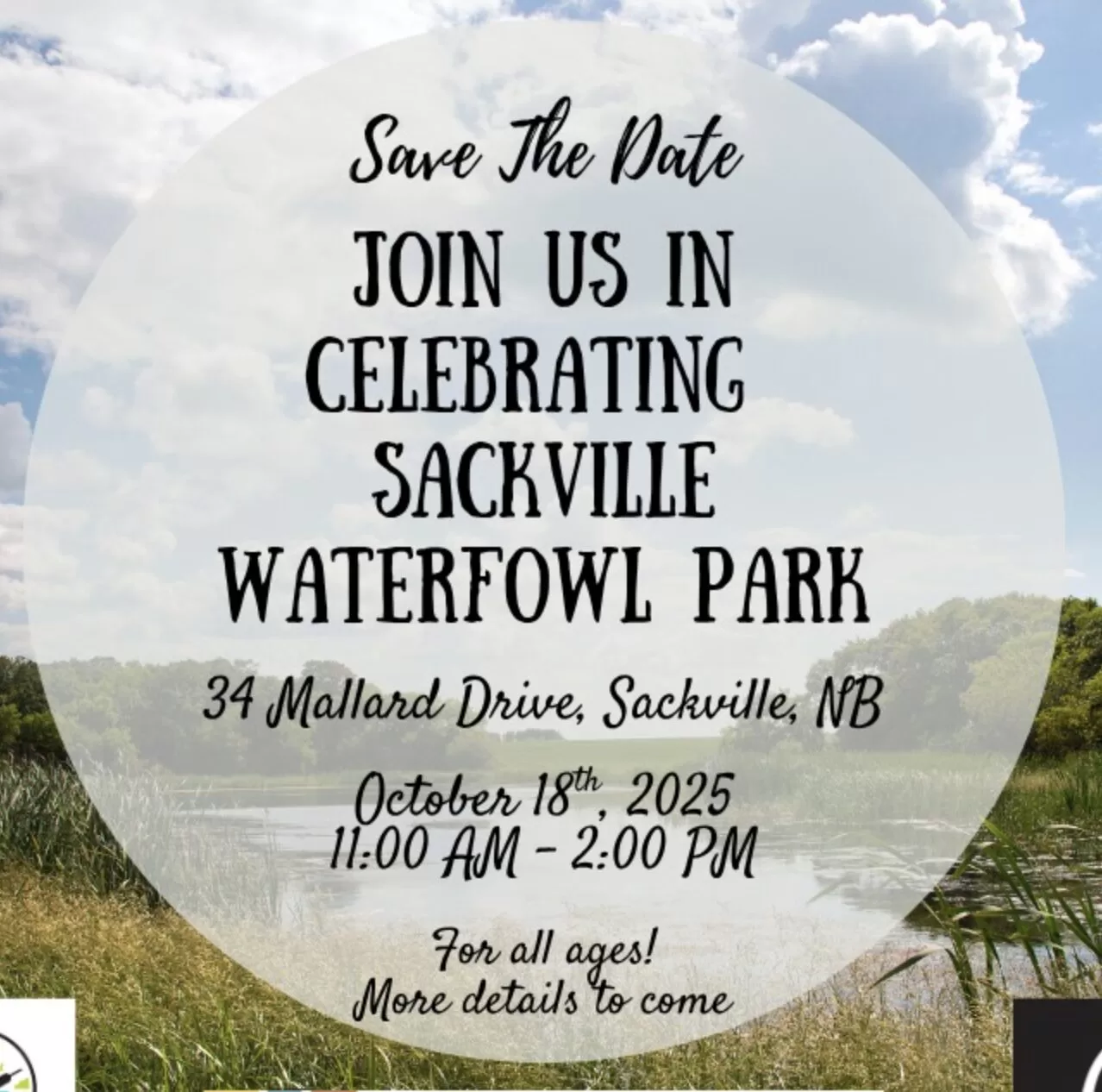
Once you have the image captured you can copy/paste the text
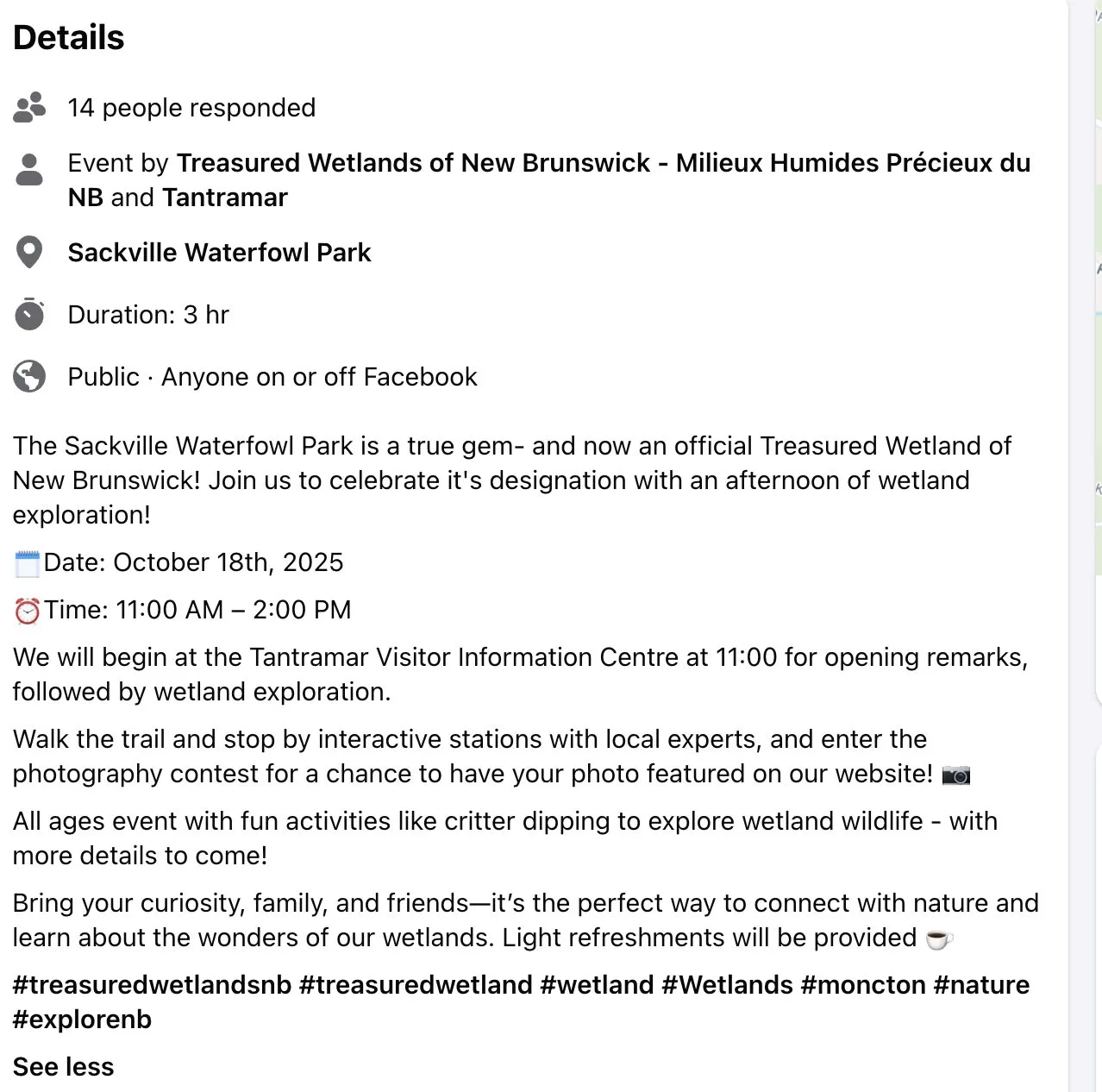
“Event by Treasured Wetlands of New Brunswick – Milieux Humides Précieux du NB and Tantramar
Sackville Waterfowl Park
Duration: 3 hr
Public · Anyone on or off Facebook
The Sackville Waterfowl Park is a true gem- and now an official Treasured Wetland of New Brunswick! Join us to celebrate it’s designation with an afternoon of wetland exploration!
 Date: October 18th, 2025
 Time: 11:00 AM – 2:00 PM
We will begin at the Tantramar Visitor Information Centre at 11:00 for opening remarks, followed by wetland exploration.
Walk the trail and stop by interactive stations with local experts, and enter the photography contest for a chance to have your photo featured on our website! 
All ages event with fun activities like critter dipping to explore wetland wildlife – with more details to come!
Bring your curiosity, family, and friends—it’s the perfect way to connect with nature and learn about the wonders of our wetlands. Light refreshments will be provided”
You’ll need this text to add the Calendar. You’ll also need to type out the name of the event. You won’t be able to copy/paste it, so you’ll need to type it out.
Adding to our Community Events Calendar
Sign in to chmafm.com
Select “Event” under the +Menu” in the top menu.

You’ll now be presented with a blank page to create the event.
Add the title of the event in the header area and the paste the text from the FB event to the body.
You’ll then need to add the image. Place your cursor at the beginning of the body text and add an image. In the top left of the page you’ll see a plus symbol “+”. This will open the WordPress menu. In the menu bar to you can enter “Image” into the search bar and then drag the icon to where you want to place the image. You’ll then want to select “Upload” and find the image, typically under Downloads, on your computer. Be sure to turn the Captions off and size the image to a small to medium size. This image can be the original image from the FB post, it doesn’t need to be sqaure.
You’ll then also need to add the image to the “Feature” image under “Post” on the right hand side of the menu. This image needs to be square. There are various places on our website where the events are displayed as a grid.
You’ll then need to be sure to date the time and date accordingly, as noted in the original event page. This is very important since it will only appear on our calendar for this time.
The body text can be the original exact information from the fb post, but it’s much preferred if it’s re-written to the third person for our hosts to read on air. Sometimes it’s preferable to re-write an event to make it more clear or add information. Please be very carefully to represent the original post as accurately as possible and always double, double check yor work. Remember that these event posts are both to help promote the event, but also for our hosts to read on air. It’s always a good practice to atleast re-write in the third person.
You can then press “Publish” and it’s live! Always double check how it’s presented on the website and triple check for the timing, spelling and square “Feature Image.” Make changes by selecting “